

Most of the internet users think that speed of their internet connection merely depends on bandwidth or transfer rate they are getting from their internet service provider. We want to tell you it is not true at all because there are dozens of other factors that also counts for enjoying fastest internet speed and DNS server is one of them.
Basically, when a user enters a website address in the web browser, the system sends a lookup request to a DNS name server to find out the IP address of the server hosting the website linked with that domain name. The same happens when the users use any other internet related thing like an email client, online messaging services or any other program or application that require an internet connection or use internet resources.
There are multiple DNS services and manual ways to change the DNS to get the fastest internet speed. Here we are mentioning some popular one.
Change DNS to Google DNS
To change DNS to Google DNS first, edit your network settings that are located in internet connection. This is the path: My Computer > My Network Places > Network Connections.
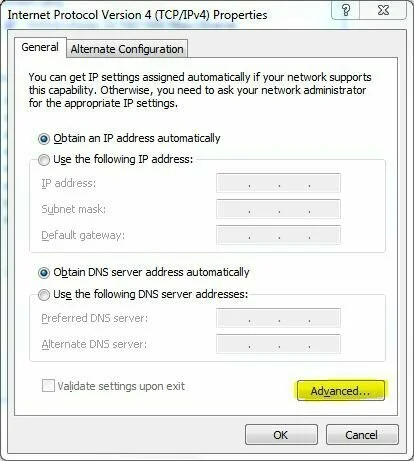
Click on Properties > Internet Protocol >TCP/IP and change your settings in “use the Following DNS server ”
The place, where you see settings for “Following DNS server address,” change it to 8.8.8.8 and 8.8.4.4.
Another Way to Change Google DNS
Changing DNS server settings on Windows 7
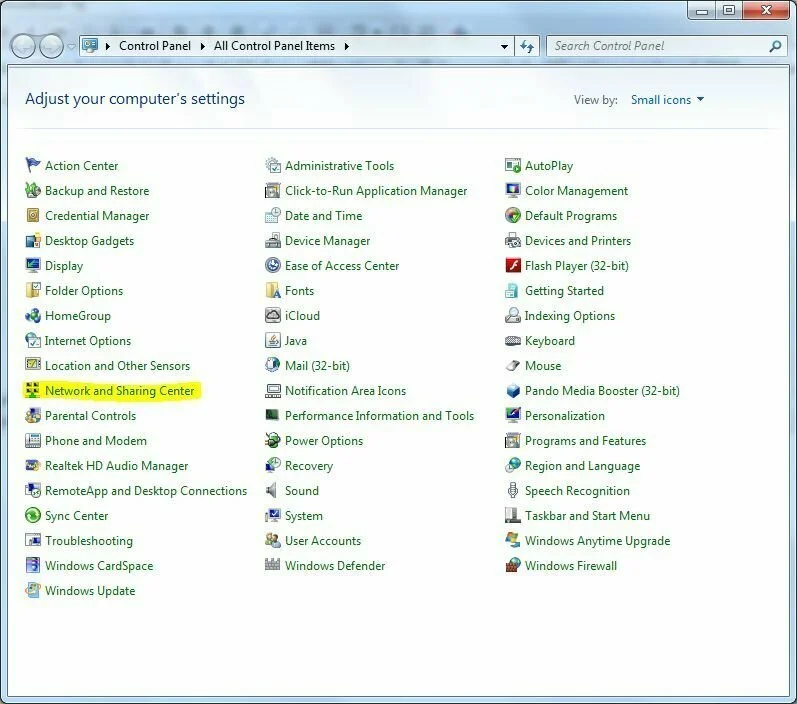
- Go to the Control Panel.
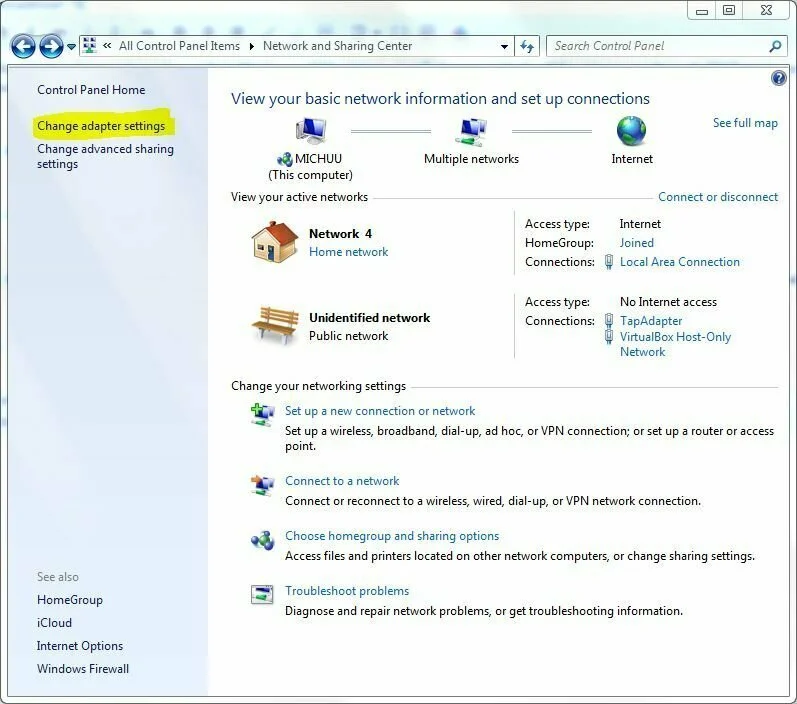
- Click Network and Internet > Network and Sharing Center > Change adapter settings.
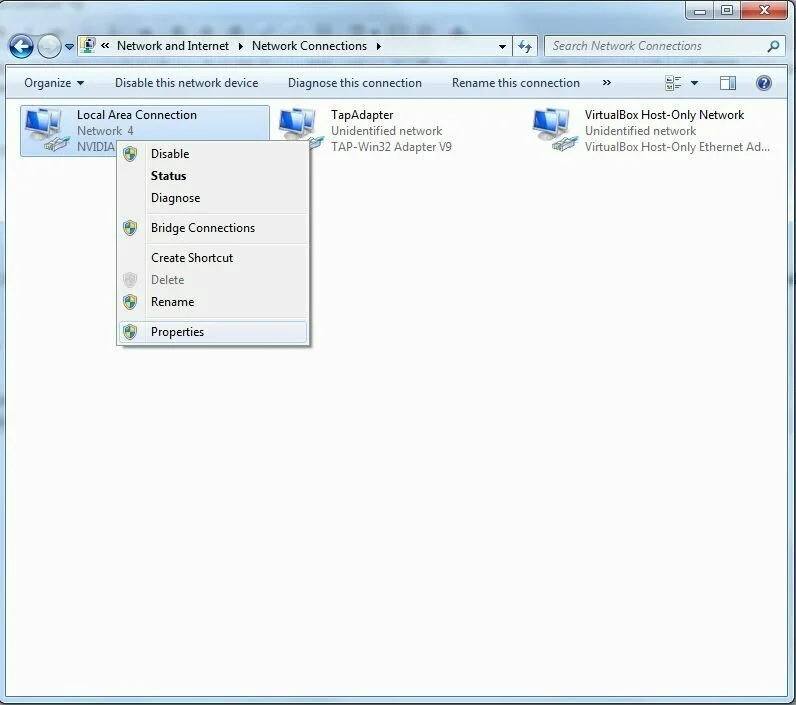
- Select the connection for which you want to configure Google Public DNS. For example:
- To change the settings for an Ethernet connection, right-click Local Area Connection > Properties.
- To change the settings for a wireless connection, right-click Wireless Network Connection > Properties.
If you are prompted for an administrator password or confirmation, type the password or provide confirmation.
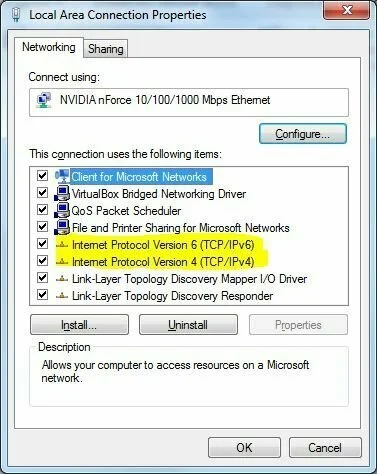
- Select the Networking tab. Under This connection uses the following items, selectInternet Protocol Version 4 (TCP/IPv4) or Internet Protocol Version 6 (TCP/IPv6) and then click Properties.
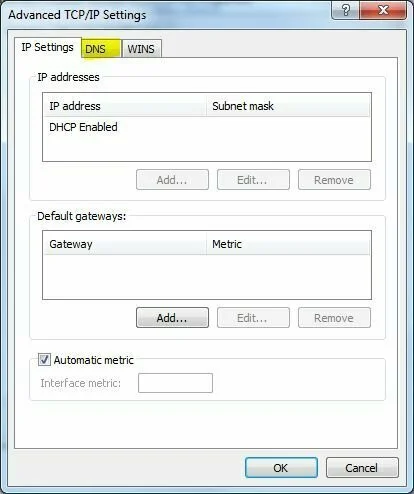
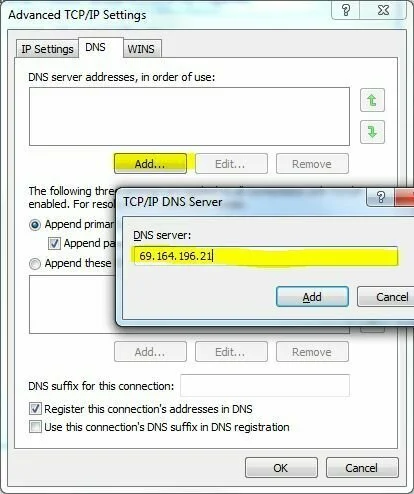
- Click Advanced and select the DNS tab. If there are any DNS server IP addresses listed there, write them down for future reference, and remove them from this window.
- Click OK.
- Select Use the following DNS server addresses. If there are any IP addresses listed in the Preferred DNS server or Alternate DNS server, write them down for future reference.
- Replace those addresses with the IP addresses of the Google DNS servers:
- For IPv4: 8.8.8.8 and/or 8.8.4.4.
- For IPv6: 2001:4860:4860::8888 and/or 2001:4860:4860::8844.
- For IPv6-only: you can use Google Public DNS64 instead of the IPv6 addresses in the previous point.
- Restart the connection you selected in step 3.
- Test that your setup is working correctly; see Test your new settings below.
- Repeat the procedure for additional network connections you want to change.
Mac OS
DNS settings are specified in the Network window.
Example: Changing DNS server settings on Mac OS 10.5
- Click Apple > System Preferences > Network.
- If the lock icon in the lower left-hand corner of the window is locked, click the icon to make changes, and when prompted to authenticate, enter your password.
- Select the connection for which you want to configure Google Public DNS. For example:
- To change the settings for an Ethernet connection, select Built-In Ethernet, and click Advanced.
- To change the settings for a wireless connection, select Airport, and clickAdvanced.
- Select the DNS tab.
- Click + to replace any listed addresses with, or add, the Google IP addresses at the top of the list:
- For IPv4: 8.8.8.8 and/or 8.8.4.4.
- For IPv6: 2001:4860:4860::8888 and/or 2001:4860:4860::8844.
- For IPv6-only: you can use Google Public DNS64 instead of the IPv6 addresses in the previous point.
- Click Apply > OK.
- Test that your setup is working correctly; see Test your new settings below.
- Repeat the procedure for additional network connections you want to change.
Linux
In most modern Linux distributions, DNS settings are configured through Network Manager.
Example: Changing DNS server settings on Ubuntu
- Click System > Preferences > Network Connections.
- Select the connection for which you want to configure Google Public DNS. For example:
- To change the settings for an Ethernet connection, select the Wired tab, then select your network interface in the list. It is usually called
eth0. - To change the settings for a wireless connection, select the Wireless tab, then select the appropriate wireless network.
- To change the settings for an Ethernet connection, select the Wired tab, then select your network interface in the list. It is usually called
- Click Edit, and in the window that appears, select the IPv4 Settings or IPv6 Settings tab.
- If the selected method is Automatic (DHCP), open the dropdown and select Automatic (DHCP) addresses only instead. If the method is set to something else, do not change it.
- In the DNS servers field, enter the Google Public DNS IP addresses, separated by a comma:
- For IPv4: 8.8.8.8 and/or 8.8.4.4.
- For IPv6: 2001:4860:4860::8888 and/or 2001:4860:4860::8844.
- For IPv6-only: you can use Google Public DNS64 instead of the IPv6 addresses in the previous point.
- Click Apply to save the change. If you are prompted for a password or confirmation, type the password or provide confirmation.
- Test that your setup is working correctly; see Test your new settings below.
- Repeat the procedure for additional network connections you want to change.
If your distribution doesn’t use Network Manager, your DNS settings are specified in/etc/resolv.conf.
Example: Changing DNS server settings on a Debian server
- Edit
/etc/resolv.conf:sudo vi /etc/resolv.conf - If any
nameserverlines appear, write down the IP addresses for future reference. - Replace the
nameserverlines with, or add, the following lines:For IPv4:nameserver 8.8.8.8 nameserver 8.8.4.4For IPv6:
nameserver 2001:4860:4860::8888
nameserver 2001:4860:4860::8844
For IPv6-only, you can use Google Public DNS64 instead of the above IPv6 addresses.
- Save and exit.
- Restart any Internet clients you are using.
- Test that your setup is working correctly; see Test your new settings below.
Additionally, if you are using DHCP client software that overwrites the settings in/etc/resolv.conf, you will need to set up the client accordingly by editing the client’s configuration file.
Example: Configuring DHCP client sofware on a Debian server
- Back up
/etc/resolv.conf:sudo cp /etc/resolv.conf /etc/resolv.conf.auto - Edit
/etc/dhcp3/dhclient.conf:sudo vi /etc/dhcp3/dhclient.conf - If there is a line containing
domain-name-servers, write down the IP addresses for future reference. - Replace that line with, or add, the following line:For IPv4:
prepend domain-name-servers 8.8.8.8, 8.8.4.4;For IPv6:
prepend domain-name-servers 2001:4860:4860::8888, 2001:4860:4860::8844;For IPv6-only, you can use Google Public DNS64 instead of the above IPv6 addresses.
- Save and exit.
- Restart any Internet clients you are using.
- Test that your setup is working correctly; see Test your new settings below.
Use OpenDNS
OpenDNS comes in both premium and free version. You can get it from here. Use the following DNS addresses to change the DNS servers
- 208.67.222.222
- 208.67.220.220
Method for changing same that is already mentioned in case of Google DNS
GRC’s DNS Benchmark and Namebench are other great tools for the internet users that are fully compatible with almost all operating systems.
Another Ultimate Guide to Changing Your DNS Server
Follow these screenshots to change the DNS server